

Your Browser Is Showing a Warning Pop-Up: Is It Real or a Scam?


Key Takeaways
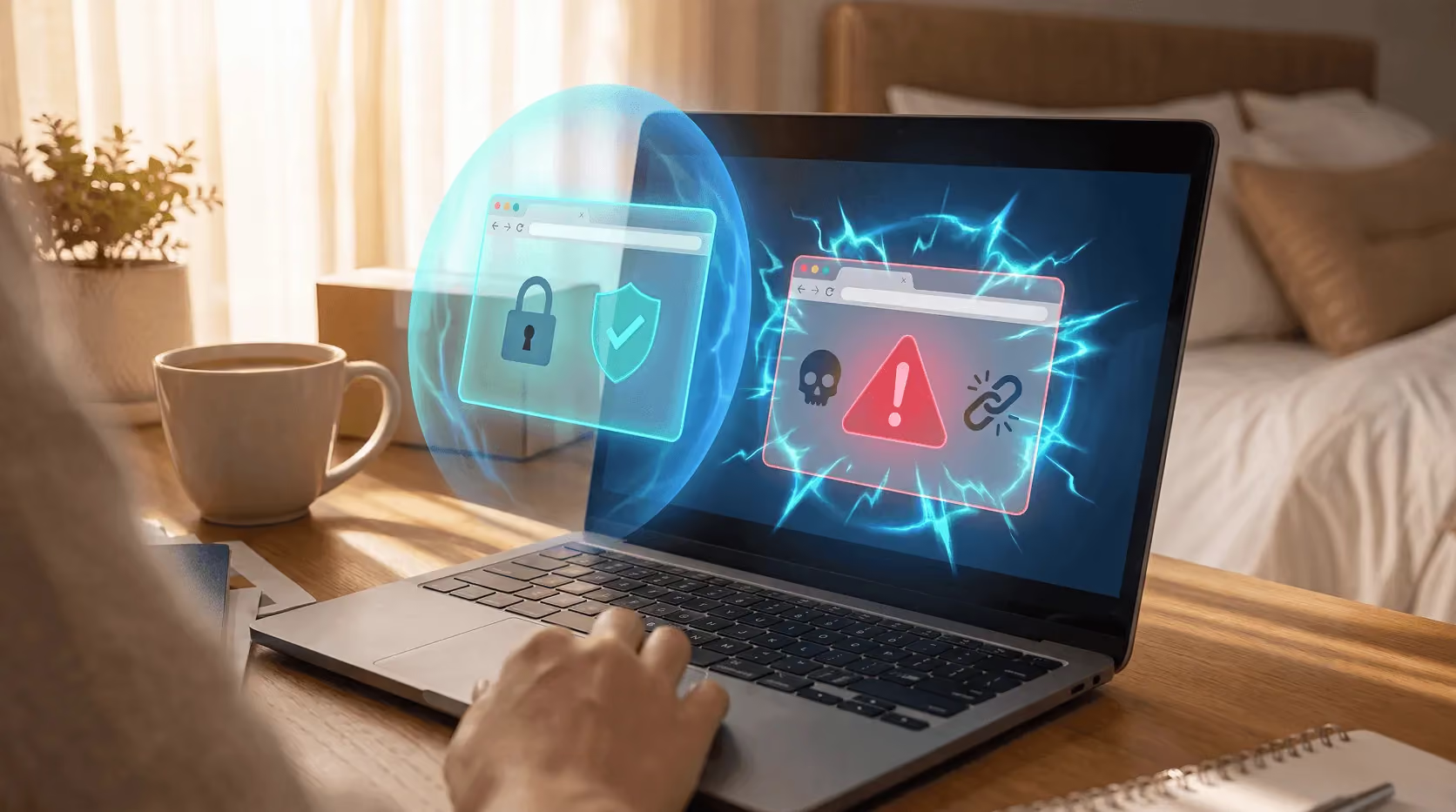
You're in the middle of browsing when your screen suddenly flashes red. Sirens blare from your speakers. A bold message announces that your computer is infected with multiple viruses and demands you call a support number immediately or risk losing all your files.
Your heart rate spikes.
That's exactly what the scammers are counting on.
Not every browser warning is a threat, but not every warning is safe to ignore, either. Knowing the difference could save you from handing over hundreds of dollars, your personal data, or remote access to your computer. Here's how to tell the real ones from the fakes.
Why this scam works so well
Browser-based scare tactics, known in cybersecurity as scareware, have become one of the most profitable online fraud methods precisely because they exploit one very human reflex: panic.
According to the FBI's 2024 Internet Crime Complaint Center (IC3) report, call center fraud, which includes tech support scams driven by fake browser pop-ups, caused $1.9 billion in losses in 2024 alone. Of that, tech support scams specifically accounted for $1.46 billion, up from $924.5 million in 2023. And the trend has only accelerated since: the FBI's 2025 IC3 Report shows tech support losses alone exceeding $2.1 billion in 2025. And the FTC reported that consumers lost a staggering $12.5 billion to fraud overall in 2024, a 25% jump over the prior year.
Older adults are hit hardest. In 2024, Americans over 60 reported $159 million in losses to tech support scams, and were five times more likely to lose money this way than younger users.
The scam works because it mimics something real: legitimate browser warnings do exist. The trick is learning which is which.
Real browser warnings: what they actually look like
Before you can spot a fake, you need to know what genuine warnings look like. Your browser, whether Chrome, Firefox, Edge, or Safari, has built-in security systems (like Google's Safe Browsing and Microsoft SmartScreen) that flag genuinely dangerous sites.
Real browser warnings:
- Take over the entire browser tab or page, not a pop-up window floating on top
- Display a clear, plain-language message like "Deceptive site ahead", "This site may harm your computer", or "Warning: Potential Security Risk Ahead"
- Come from your browser's own interface, with the address bar still showing your browser's chrome (menus, tabs) around the message
- Offer a clear option to "Go Back to Safety", with no countdown clock, no phone number, and no payment demand
- Do not play audio, flash lights, or use dramatic visual effects
- Never ask you to call anyone or download anything to fix the problem
Fake browser warnings: the telltale red flags
Scareware pop-ups are engineered to feel like emergencies. They borrow the visual language of real alerts, using red colors, official logos, and warning icons, but layer on psychological pressure tactics designed to short-circuit your judgment.
Here are the signs you're looking at a fake:
1. It appeared inside a web page or pop-up window
This is the single most reliable test. A web page cannot scan your hard drive. Browsers are "sandboxed," deliberately isolated from your operating system for security reasons. If a virus warning appears inside a browser tab or as a floating pop-up, it is by definition a fabrication. No legitimate scan has taken place.
2. There's a phone number to call
Real security software, real browsers, and real tech companies like Microsoft, Apple, or Google never display phone numbers in security warnings. If you see a number in a pop-up, that number connects directly to scammers, not support.
3. There's a countdown timer or "Act Now" pressure
Fake alerts frequently claim your files "will be deleted in 60 seconds" or that your accounts are "being accessed right now." Legitimate security software provides calm, factual notifications. It never uses theatrical countdowns to drive behavior.
4. There are sound effects, sirens, or a talking voice
No real browser warning plays audio. If your computer is suddenly blaring alarms or a voice is telling you that you're under attack, you're experiencing a psychological manipulation technique, not a genuine alert.
5. It claims a specific virus count
"Your device has been infected by 44 viruses." The specificity is intentional. It's designed to seem authoritative. But a web page has no mechanism to count anything on your device. That number was written into the HTML. It's pure theater.
6. It knows your location or device details
Modern scareware uses basic browser fingerprinting to grab your IP address, city, and operating system. A pop-up that announces "Windows 11 detected in [your city]" can feel genuinely alarming, but this is public information your browser shares automatically with every website you visit. It does not mean your computer has been scanned or compromised.
7. It asks for payment or personal information
Real security alerts never ask you to pay to remove a virus. If a warning is demanding a credit card number, gift cards, or cryptocurrency to "clean" your device, it's a scam, full stop.
8. The browser appears to be "Locked"
Scareware frequently uses JavaScript tricks, including fullscreen mode, fake dialog boxes, and loops that reopen when you try to close them, to simulate a locked computer. The browser isn't actually locked. The "lock" is an illusion.
The 5-second test
When a scary pop-up appears, ask yourself these questions before doing anything else:
- Where is the warning? Inside a browser tab or pop-up means fake. In your system notification area (bottom-right corner of Windows, top-right on Mac) means potentially real.
- Is there a phone number? Yes means fake. Always.
- Is there a countdown, siren, or dramatic visual? Yes means fake. Always.
- Does it ask you to call, pay, or download something? Yes means fake. Always.
If you answer "yes" to any of those last three, stop. Don't click anything.
What to do when you see a fake pop-up
The moment you suspect a fake warning, the goal is to exit without interacting with it, because even clicking the "X" to close it can be a disguised button that triggers a download.
Step 1: Don't click anything inside the pop-up.
Not the "X," not the "Remove Virus" button, not "Cancel." All of these may be traps.
Step 2: Force-close your browser at the system level.
- Windows: Press `Ctrl + Shift + Esc`, find your browser under "Apps," then click "End Task"
- Mac: Press `Option + Command + Esc`, select your browser, then click "Force Quit"
Step 3: When you reopen your browser, decline to restore tabs.
If Chrome or Edge offers to "restore your previous session," skip it. That will reload the malicious page.
Step 4: Clear your browser data.
Go to Settings, then Privacy and Security, then Clear Browsing Data. Select cookies and cached files, set the range to "All time," and clear.
Step 5: Check your notification permissions.
Many persistent fake alerts are actually browser notifications from a shady site you clicked "Allow" on without realizing it. Go to Settings, then Site Permissions, then Notifications, and remove any sites you don't recognize.
Step 6: Run a real scan.
Open Windows Security (or your actual installed antivirus software) and run a full scan. If it finds nothing, the pop-up was pure scare tactics. Your computer was never infected.
When you should take a warning seriously
Not every alert is a fake. Here are situations where you should pay attention:
- Your browser's built-in warning appears on a full-tab page, especially one saying "Deceptive site ahead" or "This site may contain malware," without any pop-up windows, sirens, or phone numbers. This is a real flag from Google Safe Browsing or SmartScreen. Trust it.
- Your actual installed antivirus software (Windows Defender, Norton, ESET, Malwarebytes, etc.) shows a notification in the system tray. These are calm, logged, and don't ask you to call anyone.
- Pop-ups keep appearing even with your browser fully closed. This suggests adware or malware is running at the operating system level, which is worth investigating seriously with a full malware scan.
If you already fell for it: here's what to do
It happens. Scammers are professional manipulators. If you called the number, gave remote access, or paid for fake software, take these steps immediately:
- Disconnect from the internet. Cut off any ongoing remote access.
- Change your passwords from a separate, unaffected device. Prioritize email, banking, and any accounts saved in your browser.
- Contact your bank or credit card company immediately if you provided payment information. Ask about chargebacks or fraud protection.
- Report it:
- FBI Internet Crime Complaint Center: ic3.gov
- FTC Fraud Report: ReportFraud.ftc.gov
- Have your device professionally checked. Remote access by a scammer is different from a simple pop-up. They may have installed tools that a standard scan won't catch. A thorough manual review is worth the investment
Conclusion
Browser security warnings can be one of two things: a helpful safety net your browser built specifically to protect you, or a psychological weapon designed by scammers to turn your own caution against you.
The tells are clear once you know them. If it has a phone number, a countdown, a siren, or demands payment, it's fake. Real warnings are quiet, informative, and give you a simple way to back out safely.
The best defense? Pause before you panic. Scammers need you to act in the first ten seconds of fear. Give yourself five seconds to ask: does a legitimate security system actually work this way?
It doesn't. And now you know exactly what to look for.
FAQs
Can a website actually detect viruses on my computer?
No. Websites run inside a sandboxed browser environment and have no access to your operating system or file system. Any pop-up claiming to have scanned your device and found viruses is fabricated. Only software installed on your device can perform a real scan.
What should I do if a browser pop-up has locked my screen?
The lock is almost always an illusion created by JavaScript. Press Ctrl + Shift + Esc on Windows (or Option + Command + Esc on Mac) to open your task manager and force-quit the browser. Do not click anything inside the pop-up window first.
Is it safe to call the phone number shown in a browser warning?
No. Legitimate browsers, operating systems, and tech companies like Microsoft, Apple, and Google never display phone numbers in security warnings. Any number shown in a pop-up connects to scammers, not real support staff.
How do I tell a real browser security warning from a fake one?
Real warnings take over the full browser tab, use plain language, and offer a simple 'Go Back to Safety' option. They never play audio, display countdown timers, show phone numbers, or ask for payment. If you see any of those elements, it's a fake.
What happens if I accidentally clicked on a fake pop-up?
Close the browser immediately using your task manager. Clear your browser cache and cookies, and check your notification permissions for unfamiliar sites. Run a full scan with your installed antivirus software. If you gave personal or payment information, contact your bank and change your passwords right away.
Why do fake pop-ups show my city and device type?
Your browser automatically shares your IP address and basic system information with every website you visit. Scareware uses this public data to make the pop-up feel personalized and credible. It is not evidence that your computer has been scanned or compromised.
How much money do people lose to tech support scams each year?
According to the FBI's 2025 Internet Crime Report, tech support fraud caused over $2.1 billion in losses in 2025. Americans over 60 are disproportionately affected, accounting for $1.04 billion of those losses nearly half the total.


 Online Security
Can You Get Hacked by Responding to a Text? Prevention Tips


