Does a Strong Wi-Fi Password Alone Keep Hackers Out of Your Network?


Key Takeaways
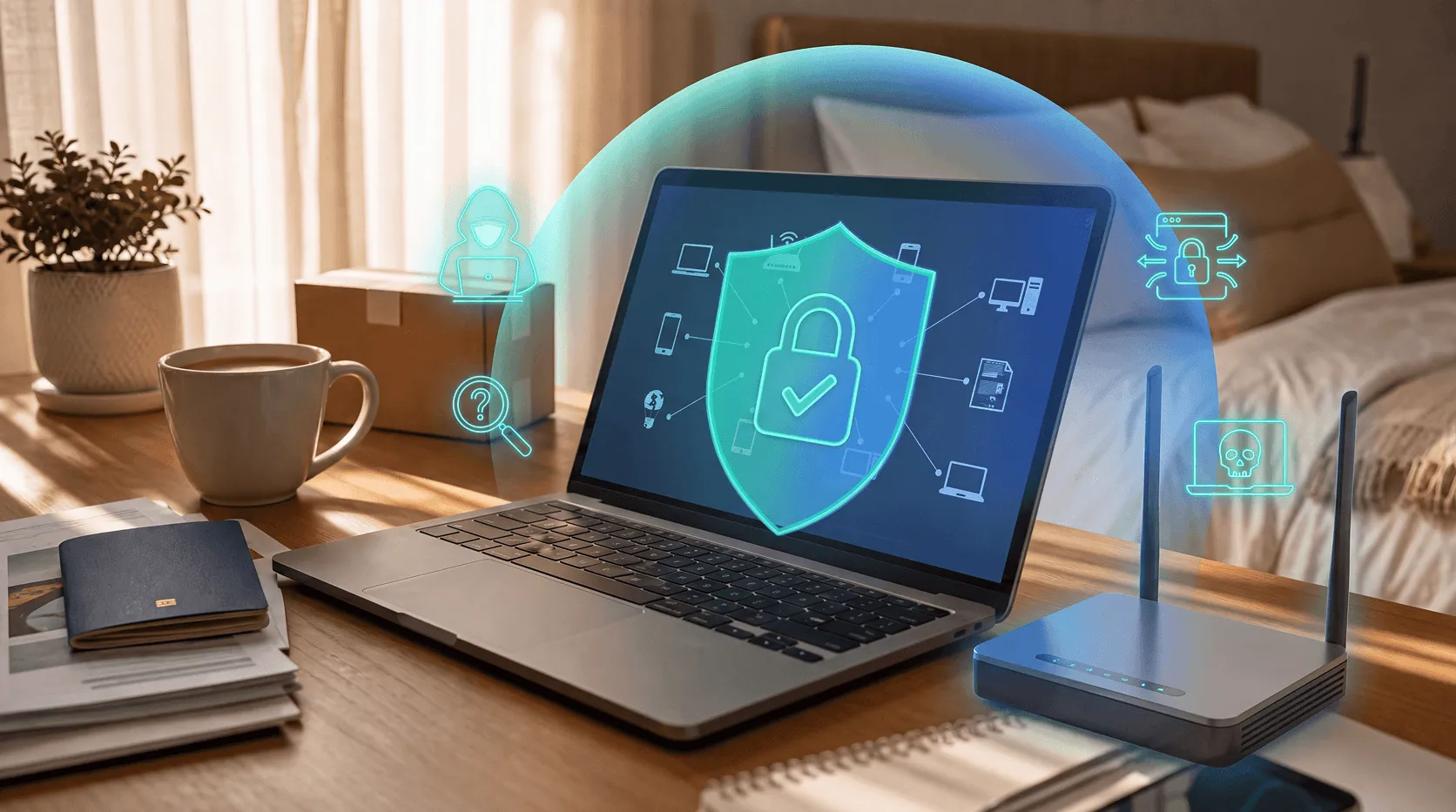
A strong Wi-Fi password is a good start, but it's not the whole story. Your home network has several other entry points that hackers can exploit, and many people never think about them.
The short answer: no, but it still matters
A strong Wi-Fi password stops one specific attack: unauthorized devices joining your network by guessing or cracking your credentials. That's real protection, and it's worth having.
But your router is more than a Wi-Fi access point. It's a small computer running its own software, with its own administrator login, its own firmware, and a handful of convenience features that can each become a doorway in the wrong hands. Locking the Wi-Fi is like locking the front door while leaving a window open.
The good news is that fixing the rest usually doesn't take long.
Why your router admin password matters more than your Wi-Fi password
Most people don't realize their router has two separate passwords: the Wi-Fi password that devices use to connect, and the admin password that controls the router's settings.
In Broadband Genie's 2025 Router Security Survey of 3,242 mostly UK internet users, 81% said they had never changed their router's admin password, and 47% said they had never adjusted any factory settings. Many ISP-supplied routers now ship with unique passwords, but older or third-party routers may still use well-known defaults, and CISA notes that default router information may be publicly available.
If a hacker gets into your router admin panel, a strong Wi-Fi password means nothing. They can change your DNS settings to redirect your traffic to fake websites, monitor everything connected to your network, or quietly install themselves as a permanent presence. None of this needs dramatic "hacking": if an attacker is on your network, or if remote administration is turned on or a router flaw exposes the admin page to the internet, default credentials may be all it takes. The FTC advises turning off remote management (FTC).
What to do: Log into your router's admin panel (the address is often 192.168.1.1 or 192.168.0.1, but check the label on your router or its manual) and change the admin username and password to something unique and strong. This is separate from your Wi-Fi password. While you're there, turn off remote administration (NSA), and check that your DNS settings haven't been changed to servers you don't recognize (FBI).
Outdated firmware is a silent vulnerability
Your router runs software, just like your phone or laptop. And just like those devices, that software has bugs. Manufacturers release firmware updates to patch security holes, but Broadband Genie's 2025 survey found that 84% of respondents said they had never updated their router firmware.
Firmware patches close known security holes. Without them, your router may be running code with vulnerabilities that have been public knowledge for years. Attackers target them: in May 2025 the FBI warned that end-of-life routers were being compromised by malware.
An unpatched router is vulnerable to exploits that have nothing to do with your Wi-Fi password. A hacker doesn't need to crack your credentials if a known software flaw lets them in another way.
What to do: Check your router's admin panel for a firmware update section. Many modern routers can update automatically, so turn that on if you haven't already (NSA). ISP-supplied routers often update themselves, so check with your provider. If the manufacturer no longer provides updates, the router is at end of life, and the NSA and FBI advise replacing it.
WPS: the convenience feature that opens a back door
Wi-Fi Protected Setup (WPS) is a feature on most routers that lets you connect a device by pressing a physical button or entering an 8-digit PIN, instead of typing your full Wi-Fi password. It sounds helpful.
The problem is that 8-digit PIN. The WPS verification process checks the first four digits and the last four digits separately, reducing the number of combinations an attacker needs to try from 100 million down to roughly 11,000 (CERT/CC). Security researchers have shown that freely available tools can recover the PIN in about 4 to 10 hours on routers without protection against repeated guesses (US-CERT). Many routers now lock out repeated attempts, but some implementations are vulnerable to offline "Pixie Dust" attacks that take seconds or minutes. Your Wi-Fi password strength is irrelevant here; the attack bypasses it entirely.
What to do: Log into your router's admin panel and disable WPS. US-CERT, CISA, and the FTC advise turning it off, and some routers don't fully disable it, so check that the setting stays off. You probably haven't used it in years, and it isn't worth the exposure.
Your encryption protocol: are you still on WPA2?
When your devices connect to your router, that connection is encrypted. The question is how strongly.
WPA3 is the current standard, and it's meaningfully better than its predecessor WPA2. WPA3 uses Simultaneous Authentication of Equals (SAE), which requires a live interaction with the network for each password guess. That makes offline brute-force attacks, where a hacker captures your handshake and runs it through a cracking tool, far less effective. WPA2 doesn't have this protection.
WPA3 also supports forward secrecy, meaning that even if someone captured your past encrypted traffic, they can't decrypt it after the fact using a later-obtained key. WPA2 offers no such protection.
If your router is set to WPA2 or, worse, the original WPA or WEP, it's worth checking whether WPA3 is available. WPA3 is required for Wi-Fi 6 certified devices (Wi-Fi Alliance), but many older routers don't support it. WPA3 isn't flawless: researchers found weaknesses in early implementations in 2019 (known as Dragonblood), which vendors have patched, so keep your firmware updated (Vanhoef and Ronen).
What to do: In your router's wireless settings, look for the security protocol option and switch to WPA3 if available. Avoid "WPA2/WPA3" mixed mode if all your devices support WPA3, because it lets older devices connect but can be downgraded. If your router only supports WPA2, make sure it's set to WPA2-AES, not TKIP.
The devices on your network are also entry points
Once a device is on your Wi-Fi, it's inside your network. That includes your smart TV, your kid's tablet, a guest's phone, and that smart plug you set up two years ago and forgot about.
If any of those devices are compromised (through malware, a phishing link, or an unpatched vulnerability) an attacker can use them as a foothold to reach other devices on the same network. Your strong Wi-Fi password didn't help here, because the threat came in through a device you let in.
Broadband Genie's survey found that 69% of respondents said they hadn't checked who is using their network, and it puts the average home at 12 connected devices. That's a meaningful blind spot.
Two practical steps can reduce this risk.
Set up a guest network. Most routers let you create a separate Wi-Fi network for guests and smart home devices. Many routers' guest networks keep guests off your main devices, so your laptop and phone stay separate from your smart fridge. Check that your router's guest or client isolation setting is on, because behavior varies by model, and note that the NSA recommends separate guest and IoT networks.
Check connected devices regularly. Your router admin panel shows every device currently connected. If you don't recognize something, you can remove it and change your Wi-Fi password.
What a genuinely secure home network looks like
You don't need to be a security expert to do this right. Here's a simple checklist:
- Change your Wi-Fi password to something long and unique, a phrase or a random string of 20 or more characters, as the NSA recommends.
- Change your router admin password to something completely different from your Wi-Fi password.
- Update your router firmware and enable automatic updates if available.
- Disable WPS in your router's admin settings.
- Turn off remote administration, and UPnP if you don't need it.
- Switch to WPA3 encryption if your router supports it. If not, use WPA2-AES.
- Set up a guest network for smart home devices and visitors.
- Check connected devices periodically to catch anything unfamiliar.
Protecting yourself beyond the router
Your router is the door to your network, but threats also arrive through your browser, malicious websites, phishing links, fake login pages, and extensions that quietly harvest your data. A strong home network setup reduces your exposure, but it doesn't cover what happens once a threat gets through via an email or a search result click.
That's where Guardio comes in. Guardio's browsing protection on your computer and phone blocks phishing and scam sites before they open and explains why. Email Security flags phishing emails that get past Gmail's spam filter, Malicious Download Blocks block malicious downloads, and Malicious Browser Extension Neutralizing deals with bad extensions. Guardio doesn't secure your router or monitor your network, so it works alongside your router settings, not instead of them. No tool catches everything, so the steps above still matter.
Get a free security scan with Guardio today and stay protected.
FAQs
Can hackers get into my Wi-Fi even with a strong password?
Yes. A strong Wi-Fi password protects against unauthorized devices connecting to your network, but hackers can still exploit your router's default admin credentials, unpatched firmware vulnerabilities, or features like WPS that bypass the password entirely. Securing your full router configuration is just as important as your Wi-Fi password.
What is the most secure Wi-Fi encryption protocol?
WPA3 is the most secure protocol currently available for home networks. It protects against offline brute-force attacks through Simultaneous Authentication of Equals (SAE) and supports forward secrecy, which prevents captured data from being decrypted later. If your router doesn't support WPA3, use WPA2-AES.
How do I know if my router has been hacked?
Signs your router may be compromised include unfamiliar devices showing up in your connected devices list, slower-than-usual internet speeds, DNS settings you didn't change, and being redirected to unexpected websites. Log into your router's admin panel and review connected devices and DNS settings. If something looks wrong, change your admin and Wi-Fi passwords immediately and consider a factory reset.
Is changing my Wi-Fi password enough to secure my network?
No. Changing your Wi-Fi password is one layer of protection, but a more secure home network also involves changing the router admin password, keeping firmware up to date, turning off remote administration, disabling WPS, using WPA3 encryption, and setting up a separate guest network for untrusted devices.
What is WPS and should I disable it?
WPS (Wi-Fi Protected Setup) is a feature that lets devices connect using a short PIN instead of a full password. The 8-digit PIN can be cracked through brute-force methods in a few hours on routers without lockout protection, because the verification process checks the PIN in two halves, reducing combinations from 100 million to roughly 11,000. US-CERT, CISA, and the FTC advise turning WPS off in your router settings.
How often should I update my router firmware?
Check for updates at least every few months, or enable automatic updates if your router supports them. Firmware updates patch known security vulnerabilities. Broadband Genie's 2025 router security survey found that 84% of respondents (mostly in the UK) said they had never updated their router firmware, which can leave a router exposed to attacks targeting known flaws. If your router is end of life and no longer gets updates, replace it.
 Online Security
Brushing scams: why you got a package you never ordered
 Online Security
Venmo & Cash App Scams: The 6 Tricks People Keep Falling For


